INSTALL IPTV
SMARTERS PRO.
A step-by-step XtremeStreams guide for Android phones, tablets, Android TV, Google TV and compatible Fire OS devices. Install the player first, then add your streaming service login.
| Your device | Follow this path |
|---|---|
| Fire TV or Firestick with Fire OS | Prepare on section 2 → download on section 3 → install on section 4 → sign in on section 6 |
| Android TV or Google TV | Start on section 3 → install on section 4 → sign in on section 6 |
| Android phone or tablet | Install on section 5 → sign in on section 6 |
Check your device before downloading
The supplied IPTV Smarters Pro 5.0 APK requires Android 5.0 or later. Check the Downloads card for the current version and requirements.
For Fire TV, check Settings → My Fire TV → About. Continue with the Fire TV steps only if the device uses Fire OS and permits APK installation. Vega OS devices use a different app format and cannot install this Android APK.
Open Member Login for service details or support
Screenshots are genuine reference images published by AFTVnews and Samsung. They show example devices and earlier software layouts. Menu names and appearance can vary. These are reference examples; your device and Smarters interface may look different.
Prepare your Fire TV or Firestick
Use the remote’s directional buttons to move and the center Select button to choose an item. Complete these three steps, then continue on section 3.
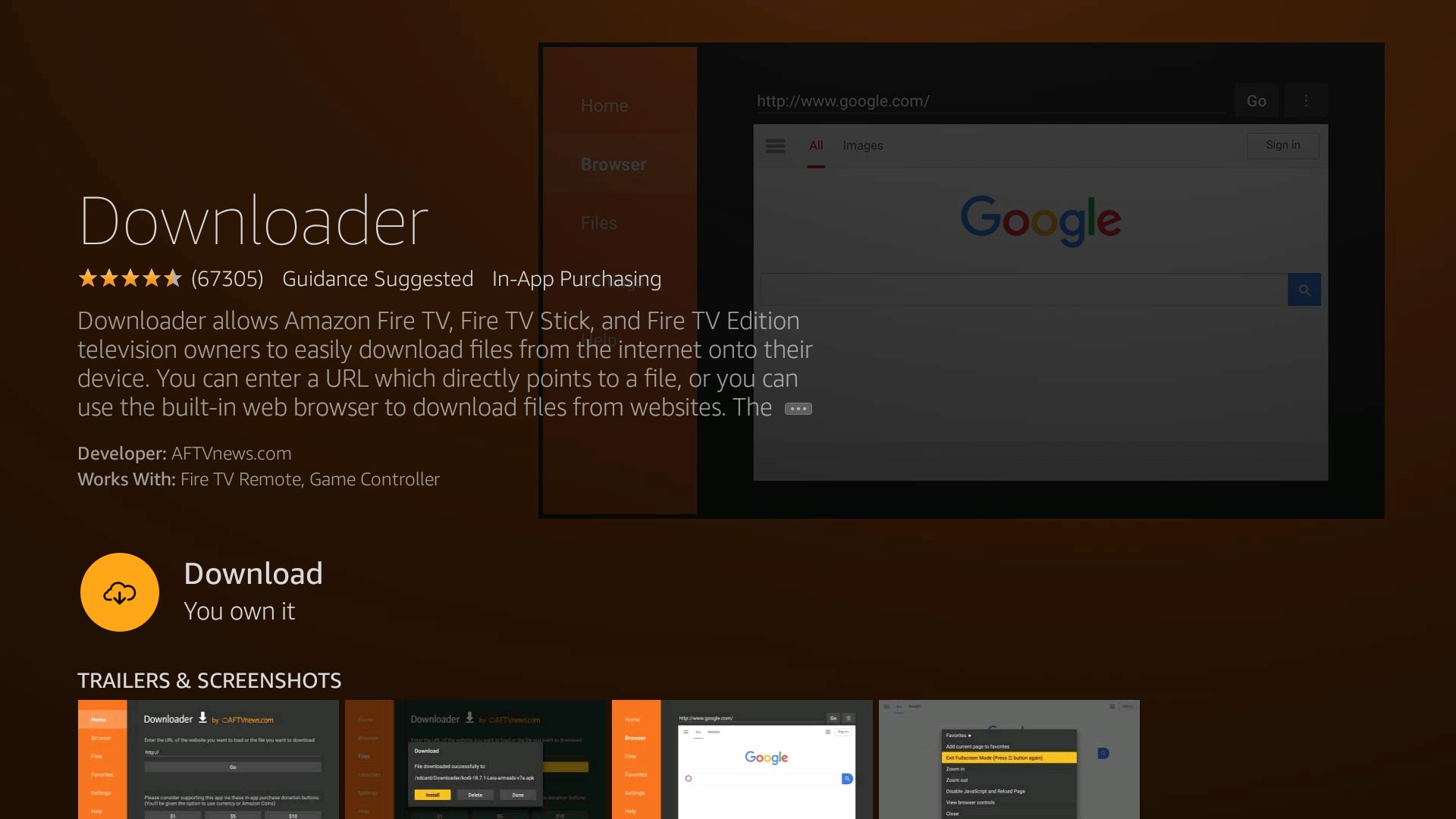
1. Install Downloader
From the Fire TV home screen, open Find or Search. Search for Downloader, choose the app by AFTVnews, and select Get or Download.
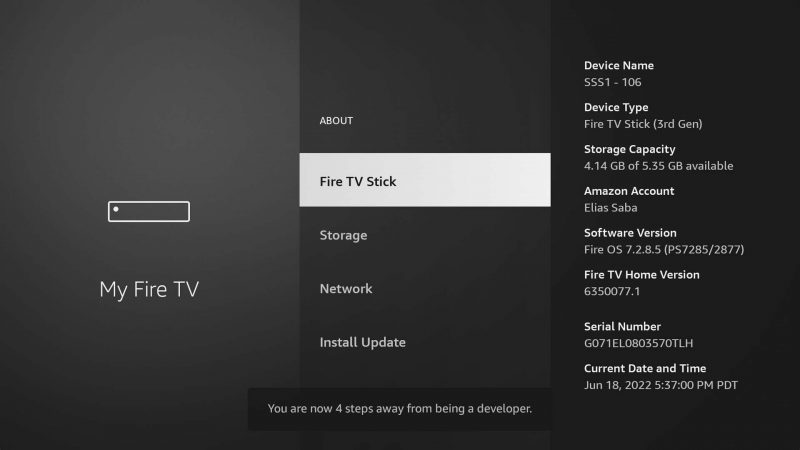
2. Reveal Developer Options if needed
Open Settings → My Fire TV → About. Highlight your device name and press Select 7 times. Press Back to return to My Fire TV. On some Fire TV televisions, this menu is called Device & Software.
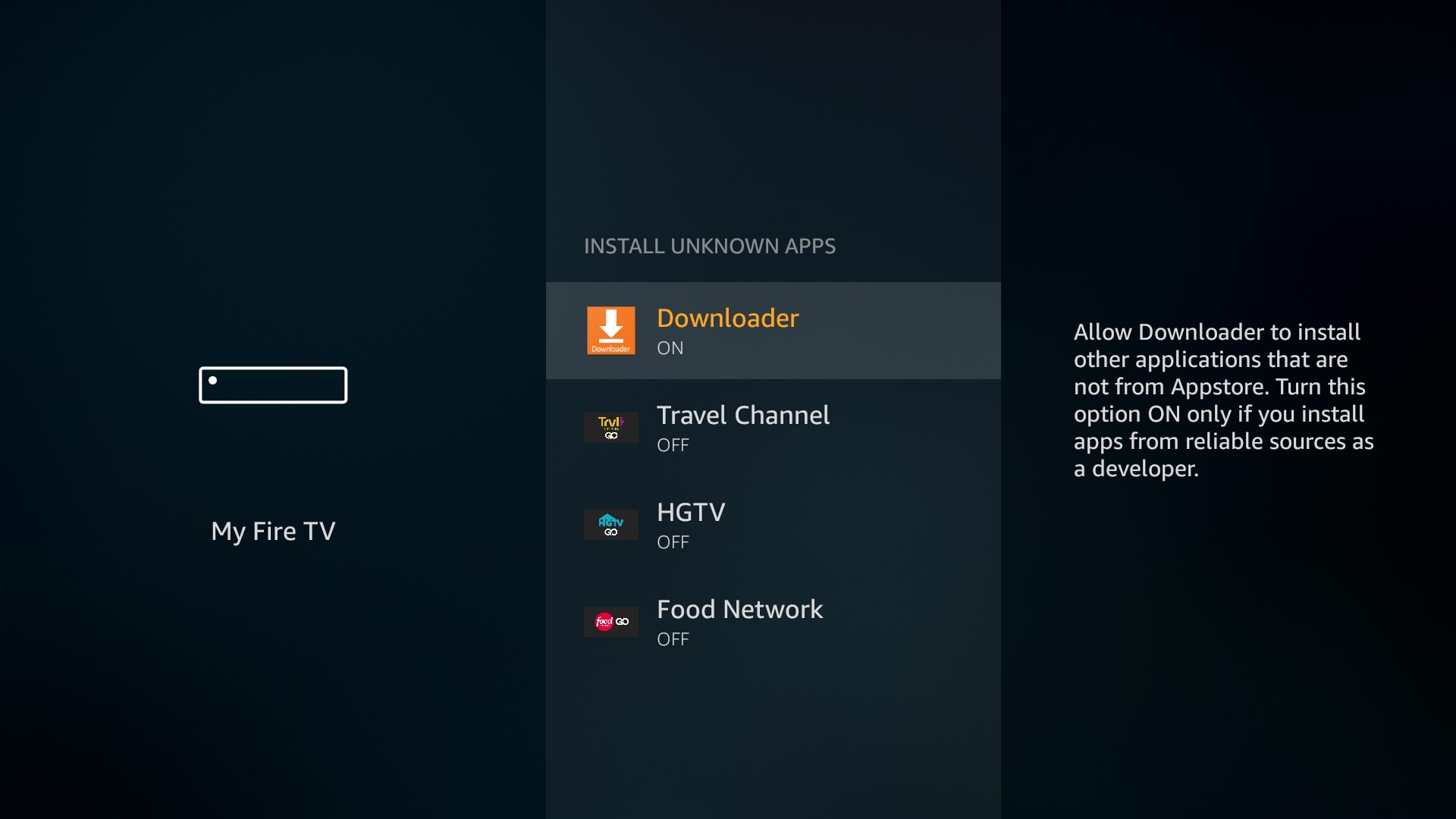
3. Allow Downloader to install apps
Open Developer Options → Install Unknown Apps. Select Downloader and set it to ON. Older Fire OS versions may show Apps from Unknown Sources instead.
Next: open Downloader and follow Download the APK on your TV on section 3. ADB debugging is not needed for this Downloader method.
Download the APK on your TV
Fire TV users can start at step 2 below after preparing their device. Android TV and Google TV users start at step 1.
1. Android TV and Google TV preparation
Open the TV’s Google Play Store and install Downloader by AFTVnews. If Downloader is unavailable for your device, ask support for a compatible file-transfer method.
2. Get your direct APK download link
Use the direct IPTV Smarters APK link supplied by XtremeStreams support or your activation instructions. If you do not have a direct link, request one through Member Login before continuing.
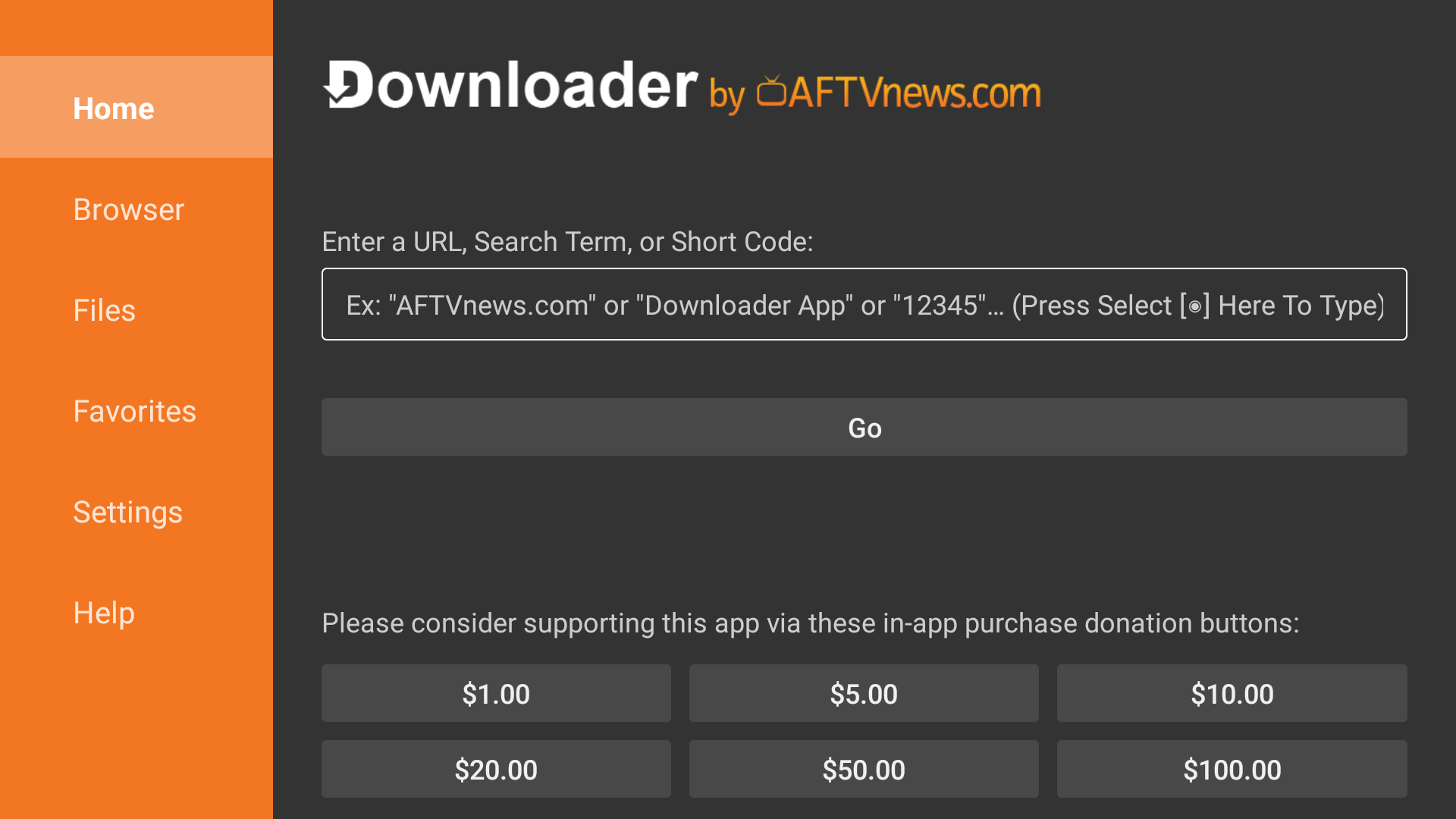
3. Enter the link in Downloader
Open Downloader. On its Home screen, select the URL field, enter the complete link exactly as provided, then select Go. Wait for the download to finish.
Install and open the player on TV
Continue after the complete APK has downloaded. Follow the system installer shown on your own device.
4. Allow this installer if prompted
If the TV blocks installation, choose Settings in the prompt and allow Downloader to install apps. Return to Downloader and open the downloaded APK again. Android TV menu names vary; look for Install unknown apps or Unknown sources.
5. Check the app name and install
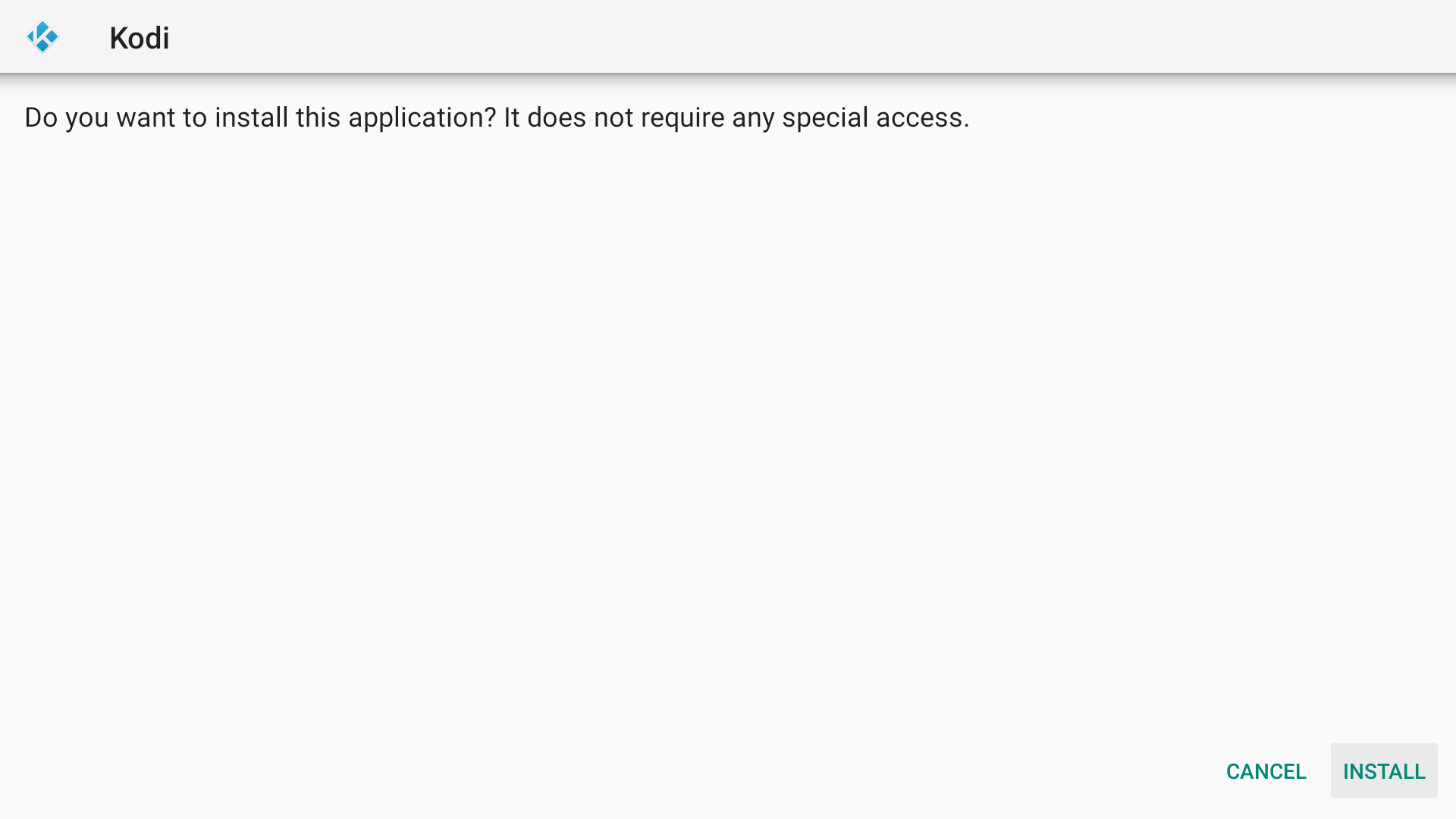
Confirm the installer identifies IPTV Smarters Pro. Select Install and wait for confirmation. If no installer appears automatically, open Downloader’s Files section and select the completed Smarters APK.
6. Open IPTV Smarters Pro
Select Open after installation, or launch the app from your device’s apps list. On Fire TV, another route is Settings → Applications → Manage Installed Applications → IPTV Smarters Pro → Launch application.
After confirming the app works, you may remove the downloaded APK file from Downloader to free storage. Keep the installed app. You can also turn off Downloader’s installation permission until an update is needed.
Next: add your streaming login on section 6. Installing the player does not activate or renew a subscription.
Install on an Android phone or tablet
Use your phone or tablet’s browser and file manager. Screens below show a Samsung example; other brands may use different menu labels.
1. Choose the Smarters APK
Open xtremestreams.com/downloads/. Find IPTV Smarters Pro and tap Download APK. Wait for the complete download.
2. Open the downloaded file
Open your browser’s Downloads or your device’s Files / My Files → Downloads. Tap the Smarters file ending in .apk.
3. Allow the app opening the APK
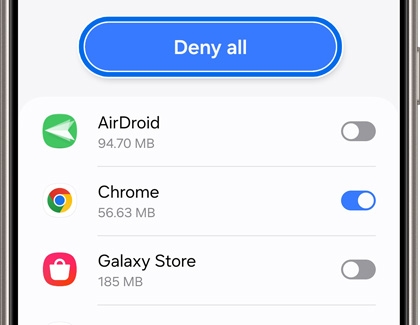
If prompted, tap Settings, then enable Allow from this source for the browser or file manager you used. You can also search Settings for Install unknown apps. Allow only the needed source.
4. Install the application
Return to the APK and tap Install. Confirm that the installer identifies IPTV Smarters Pro.
5. Open and add your service
Tap Open and follow section 6. After installation, you can turn off the browser or file manager’s installation permission.
Add your XtremeStreams service
Use the streaming service details supplied in your activation message. Your website account login and your streaming player login may be different.
1. Choose the right device layout
Open IPTV Smarters Pro. If prompted for a device type, choose TV for a television or Mobile for a phone or tablet. Review any first-run terms shown by the app.
2. Choose your login method
If your activation message provides a username, password and server URL, select the Xtream Codes / Xtream Codes API login option. If you were supplied an M3U playlist instead, choose the matching playlist option. Button names can vary.
| Field in the player | What to enter |
|---|---|
| Any Name or Profile Name | XtremeStreams, or another name you recognize |
| Username | The streaming username from your activation message |
| Password | The streaming password from your activation message |
| Server URL or Portal URL | The exact service URL, including http/https and any port, as supplied |
3. Save the profile and load your lineup
Select the app’s Add User, Login or Save action. Let channels and other available categories load. Open a channel or title to check playback.
Troubleshooting and screenshot sources
Use the checks below if installation or sign-in stops. Screenshots show real reference devices; your exact device layout and Smarters interface may differ.
| What you see | What to do |
|---|---|
| Download page or APK link unavailable | Ask support for a current direct APK link. |
| App not installed or a signature conflict | Check storage and device requirements. Contact support before uninstalling an existing player; settings may be lost. |
| Invalid login or no lineup | Check the exact streaming credentials and service URL. Confirm your subscription is active. |
| Security block or installation option missing | Share the device model, operating system and exact message with support. |
Open Member Login and submit a support ticket
Include your device model, operating system, app version and exact error. If sending a screenshot, hide passwords and private account details.
Screenshot sources and platform documentation
Screenshot sources
AFTVnews Downloader screenshot gallery
AFTVnews Fire TV sideloading guide
AFTVnews Developer Options guide
Samsung Install unknown apps support
Images are included unchanged. Downloader Home is from 2024; Fire TV reference images are from 2020 and 2022. The generic installer example shows Kodi and is explicitly labeled on section 4. All images remain the property of their owners.
Platform documentation
Amazon Developer Options · Amazon install and launch · Fire OS and Vega OS
Google app installation · Play Protect · Downloader on Google Play
Guide updated 8 October 2026. Check the current Downloads card for app requirements before installing an update.